
Introduction
Linux is a multi-user operating system, so it needs a way to control who can access files and directories and what they can do with them.
Permissions and ownership provide this basic access-control mechanism. They determine whether a user can read, modify, or execute a file, as well as whether they can access the contents of a directory.
Understanding these concepts is essential for Linux administration and becomes especially important when working with services, application files, logs, configuration files, and sensitive data.
In this post, we will explore how Linux permissions and ownership work, how to modify them with chmod, chown, and chgrp, and how umask controls permissions for newly created files and directories.
Reading File Permissions
The ls -l command is one of the simplest ways to inspect the permissions and ownership of a file:
ls -lA typical entry may look like this:
-rw-r--r-- 1 xsah developers 1234 Sep 3 config.txtThe first part contains the file type and permission bits:
-rw-r--r--It can be divided into four parts:
-  rw-  r--  r--
│   │    │    └── others
│   │    └─────── group
│   └──────────── owner
└──────────────── file type
The first character indicates the file type. A regular file is represented by -, while a directory is represented by d.
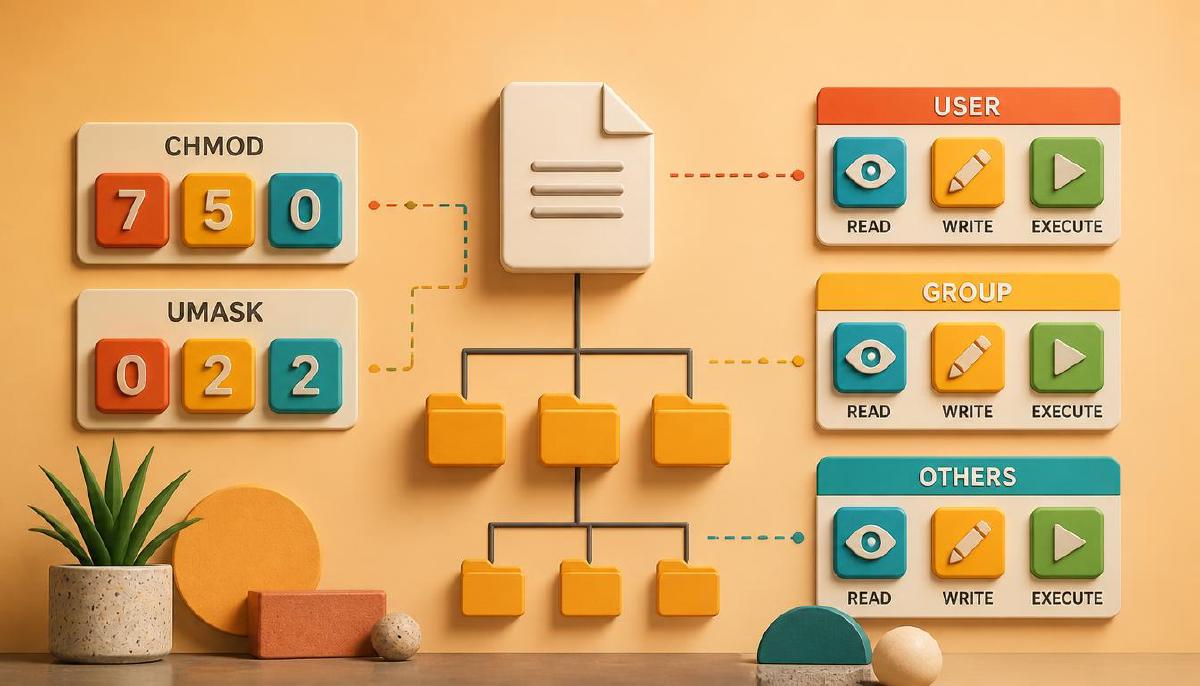
The remaining nine characters are divided into three groups of three permissions:
- Owner — permissions for the user who owns the file
- Group — permissions for users belonging to the file’s group
- Others — permissions for everyone else
Linux documentation from Red Hat also describes permissions in terms of these three ownership levels: user, group, and others.
Read, Write and Execute
Each permission group can contain three basic permissions:
| Permission | Symbol | Meaning |
|---|---|---|
| Read | r | Read the file |
| Write | w | Modify the file |
| Execute | x | Execute the file |
For a regular file, these permissions have relatively straightforward meanings.
For example:
rw-means that the corresponding user or group can read and write the file, but cannot execute it.
However, these permissions have a different meaning when applied to a directory.
Permissions on Files
For a regular file:
rallows reading its contents.wallows modifying its contents.xallows executing it as a program or script.
For example:
-rwx------means that the owner can read, write, and execute the file, while the group and others have no permissions.
Permissions on Directories
For a directory:
rallows listing its entries.wallows creating, deleting, and renaming entries.xallows accessing or traversing the directory.
The meaning of x on a directory is particularly important. It does not mean “execute the directory.” Instead, it allows a user to access objects inside it, provided the other required permissions are present.
This distinction becomes important when troubleshooting Permission denied errors.
File Ownership
Every file and directory has an owning user and an owning group.
Consider this output:
-rw-r--r-- 1 xsah developers 1234 Sep 3 config.txtHere:
xsah        → owner
developers  → group
The permissions are evaluated based on the relationship between the user accessing the file and these ownership values.
You can inspect the current user and their groups with:
id
groups
For example:
idmay show the user’s UID, primary group, and supplementary groups.
Understanding users and groups is therefore an important part of understanding Linux permissions.
Changing File Ownership
The chown command changes the owner of a file or directory:
sudo chown amir config.txtYou can change both the owner and group at the same time:
sudo chown amir:developers config.txtThe chgrp command changes only the group ownership:
sudo chgrp developers config.txtOwnership changes are commonly used when configuring services and application directories so that a specific service account can access the files it needs.
When changing ownership recursively, -R can be used:
sudo chown -R amir:developers project/Recursive operations should be used carefully because they affect every file and directory below the specified path.
Changing Permissions with chmod
The chmod command changes the permission bits of a file or directory.
There are two common ways to use it: symbolic notation and numeric notation.
Symbolic Notation
Symbolic notation uses:
u = user
g = group
o = others
a = all
For example, to add execute permission for the owner:
chmod u+x script.shTo remove write permission from the group:
chmod g-w config.txtTo remove read permission from others:
chmod o-r secret.txtYou can also make several changes at once:
chmod u+x,g-w,o-r file.txtThis form is useful when you want to modify specific permissions without replacing the entire permission set.
Numeric Permissions
Permissions can also be represented using numbers.
The three basic permissions have these values:
| Permission | Value |
|---|---|
r | 4 |
w | 2 |
x | 1 |
The values are added together for each permission group:
| Value | Permissions |
|---|---|
7 | rwx |
6 | rw- |
5 | r-x |
4 | r-- |
3 | -wx |
2 | -w- |
1 | --x |
0 | --- |
For example:
755can be interpreted as:
7   5   5
│   │   └── others: r-x
│   └────── group:  r-x
└────────── owner:  rwx
So:
755 → rwxr-xr-xSimilarly:
644 → rw-r--r--This is why permissions such as 755 and 644 are frequently seen on Linux systems.
Some permission modes are particularly common:
755
rwxr-xr-xThe owner can read, write, and execute, while the group and others can read and execute.
This is commonly used for directories and executable files.
644
rw-r--r--The owner can read and write, while the group and others can only read.
This is a common permission mode for regular files that do not need to be executable.
700
rwx------Only the owner has access.
This can be useful for private directories and files.
The exact permission mode should always depend on the purpose of the file rather than simply applying a familiar number.
Permissions and Directories
Directory permissions deserve special attention because r, w, and x control different operations than they do for regular files.
Consider:
mkdir test-dir
ls -ld test-dir
The -d option makes ls display the directory itself rather than its contents.
A directory such as:
drwxr-xr-xmeans:
- The owner can list, create, delete, rename, and access entries.
- The group can list and access entries.
- Others can list and access entries.
- Only the owner can modify the directory contents.
An important consequence is that having write permission on a file is not enough to delete it. Deleting or renaming a file is primarily controlled by the permissions of its parent directory.
Special Permissions
Linux also provides special permission bits that extend the traditional r, w, and x permissions:
- setuid
- setgid
- sticky bit
These appear as s or t in permission listings.
For example, /tmp commonly has a permission mode similar to:
ls -ld /tmpdrwxrwxrwtThe final t is the sticky bit.
On a directory with the sticky bit set, users generally cannot delete or rename files belonging to other users, even when they have write permission on the directory. This is why a shared directory such as /tmp can safely allow multiple users and processes to create files.
Special permissions are an advanced part of the Linux permission model, but recognizing them is useful when inspecting real systems.
Understanding umask
Permissions for newly created files and directories are influenced by a value called umask.
You can display the current umask with:
umaskFor example:
0022The umask specifies which permission bits should be removed from the permissions requested when a new file or directory is created.
This means that umask does not directly say “give the file these permissions.” Instead, it acts as a mask that restricts the permissions that can initially be assigned.
Default Permissions and umask
A useful way to understand umask is to start with the base permission values commonly used when creating objects:
Files       → 666
Directories → 777
Regular files do not receive execute permission by default.
With a typical umask of:
022a newly created regular file commonly ends up with:
666
→ 022
= 644
and a newly created directory commonly ends up with:
777
→ 022
= 755
You can observe this behavior directly:
umask
touch test.txt
mkdir test-dir
ls -l test.txt
ls -ld test-dir
The exact environment can affect the resulting permissions, but the relationship between the base mode and umask provides the key idea.
The ArchWiki documentation on umask provides a useful explanation of how the mask affects newly created files and directories.
Checking and Changing umask
You can temporarily change the umask for the current shell:
umask 027Then create new objects:
touch restricted.txt
mkdir restricted-dir
and inspect their permissions:
ls -l restricted.txt
ls -ld restricted-dir
The new objects will be created with more restrictive permissions than they would have been with a umask of 022.
The important point is that umask affects the process environment in which files are created. Processes started from a shell inherit the shell’s umask.
Practical Permission Troubleshooting
One of the most common permission-related errors in Linux is:
Permission deniedWhen troubleshooting such an error, start by inspecting the file:
ls -l file.txtThen check the current user’s identity and groups:
id
groups
For a path containing multiple directories, namei can help inspect the permissions of each component:
namei -l /path/to/file.txtA useful troubleshooting process is:
- Identify the user accessing the file.
- Check the file’s owner and group.
- Check the relevant permission set.
- Check whether the user belongs to the required group.
- Check the permissions of the parent directories.
- Check whether a special permission or another access-control mechanism is involved.
This approach is much safer than immediately using chmod 777 to make an error disappear.
Avoid using chmod 777 as a general solution to Permission denied. It may hide the underlying problem while unnecessarily granting broad access to a file or directory.
Why Permissions Matter in DevOps
Permissions are not just a Linux fundamentals topic. They appear constantly in real-world infrastructure and DevOps work.
For example:
- SSH private keys must be protected from unauthorized users.
- Configuration files may contain credentials or other sensitive information.
- Services often run under dedicated system users.
- Web servers need appropriate access to application files.
- Log files may need to be readable by specific users or services.
- Deployment directories need carefully chosen ownership and permissions.
- Shared directories may require group-based access.
- Containerized applications may encounter permission problems when using mounted volumes.
A permission that is too restrictive can prevent an application or service from working.
A permission that is too permissive can expose data or allow unwanted modifications.
Good Linux administration therefore requires finding the appropriate balance between functionality and security.
From Ownership to Access
At this point, the main pieces of the Linux permission model can be connected:
User / Group
     │
     ▼
Ownership
     │
     ▼
Permissions
     │
     ├── Read
     ├── Write
     └── Execute
     │
     ▼
Access to Files and Directories
The previous posts introduced the filesystem, mounting, inodes, and links. Permissions add another layer to that picture.
A filename identifies an object through the filesystem and inode structures discussed earlier, while ownership and permission bits determine which users are allowed to interact with it.
This is one reason understanding Linux as a collection of connected concepts is more useful than memorizing individual commands.
Summary
Linux permissions provide a basic mechanism for controlling access to files and directories.
The main concepts covered in this post were:
- Owner — the user who owns a file or directory.
- Group — the group associated with it.
- Others — all other users.
- Read (
r) — permission to read or list. - Write (
w) — permission to modify or change. - Execute (
x) — permission to execute a file or access a directory. chmod— changes permissions.chown— changes ownership.chgrp— changes group ownership.- Numeric permissions — represent permission sets using values such as
755and644. - Special permissions — include setuid, setgid, and the sticky bit.
umask— controls which permissions are initially removed when new files and directories are created.
Together, these mechanisms form a fundamental part of Linux security and system administration.