

Introduction
Understanding the Linux filesystem hierarchy is only the first step. Knowing where directories such as /, /etc, /var, and /home are located does not yet explain how the storage behind that hierarchy is actually connected.
Linux separates the idea of a filesystem from the place where that filesystem appears in the directory tree. This is where mounting becomes important.
A disk partition, logical volume, or another block device can contain a filesystem, but it does not automatically become accessible through the directory hierarchy. Linux needs to mount that filesystem at a specific directory, known as a mount point.
This post focuses on how Linux connects storage to its directory hierarchy, how to inspect those connections, and how /etc/fstab makes mounts persistent across reboots.
From Block Devices to Filesystems
Before looking at mount, it is useful to distinguish between a block device and a filesystem.
A block device represents storage that Linux can read from and write to. Examples include physical disks and their partitions:
lsblkA typical output might look like:
NAME        SIZE TYPE MOUNTPOINTS
nvme0n1     100G disk
├─nvme0n1p1  512M part /boot/efi
├─nvme0n1p2    2G part /boot
└─nvme0n1p3 97.5G part /
Here, nvme0n1 is a disk and its partitions are block devices.
However, a block device by itself is not the same thing as a filesystem. A filesystem such as ext4 or xfs provides the structure that allows files and directories to be stored on that device.
We can inspect filesystem information with:
lsblk -fFor example:
NAME        FSTYPE FSVER LABEL UUID                                 MOUNTPOINTS
nvme0n1p1   vfat   FAT32       A1B2-C3D4                            /boot/efi
nvme0n1p2   ext4   1.0         12345678-1234-1234-1234-123456789abc /boot
nvme0n1p3   ext4   1.0         abcdef12-3456-7890-abcd-ef1234567890 /
This gives us a more complete picture:
Block device
     ↓
Filesystem
     ↓
Mount point
     ↓
Directory hierarchy
This distinction becomes especially important when working with servers and storage.
What is a Mount Point?
A mount point is a directory where Linux makes the contents of a filesystem available.
For example, suppose a separate partition contains an ext4 filesystem. We could create a directory:
sudo mkdir /dataand mount the filesystem there:
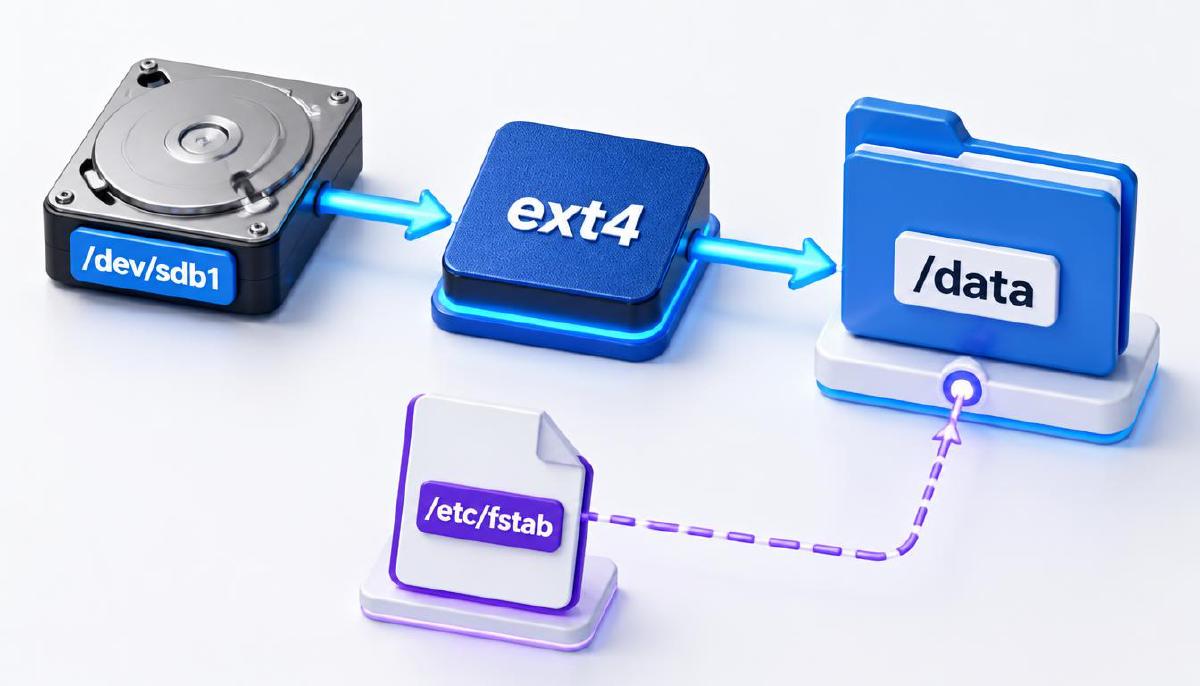
sudo mount /dev/sdb1 /dataAfter the mount succeeds, /data becomes the entry point to the filesystem stored on /dev/sdb1.
The important idea is that /data is not the filesystem itself. It is the location in the existing directory hierarchy where that filesystem becomes accessible.
Conceptually:
/dev/sdb1
    │
    │ contains an ext4 filesystem
    ▼
  mount
    │
    ▼
 /data
    │
    ├── projects/
    ├── backups/
    └── files/
This is one of the key differences between Linux and systems where storage devices are typically exposed as separate drive letters.
Linux presents storage as part of one directory hierarchy.
Mounting a Filesystem
The basic form of the mount command is:
sudo mount <device> <mount-point>For example:
sudo mount /dev/sdb1 /dataLinux detects the filesystem on the device and attaches it to /data.
If you need to specify the filesystem type explicitly, mount also supports the -t option:
sudo mount -t ext4 /dev/sdb1 /dataIn many cases, however, Linux can detect the filesystem automatically.
After mounting, we can inspect the result:
findmnt /dataor:
df -h /dataThe findmnt is particularly useful because it shows the relationship between the source device, filesystem, and mount point.
Inspecting Mounted Filesystems
The mount command without arguments can show currently mounted filesystems:
mountFor a more structured view, findmnt is often easier to read:
findmntYou can also inspect storage usage with:
df -hThese commands answer slightly different questions:
lsblk→ What block devices exist?lsblk -f→ What filesystems and UUIDs do they contain?findmnt→ Where are filesystems currently mounted?df -h→ How much space is available on mounted filesystems?mount→ What mounts are currently active?
Using these commands together gives a much clearer picture than relying on any single command.
Unmounting a Filesystem
When a filesystem is no longer needed, it can be detached from the directory hierarchy using umount:
sudo umount /dataNotice that the command is umount, not unmount!
You can specify either the mount point:
sudo umount /dataor, where appropriate, the device:
sudo umount /dev/sdb1If the filesystem is busy, the operation may fail. This usually means that a process is currently using files or directories on that filesystem.
For example, if your current shell is inside /data:
cd /data
sudo umount /data
the unmount can fail because the shell itself is using the mount point.
Move out of the directory first:
cd /
sudo umount /data
This is a small example, but it demonstrates an important operational principle: storage cannot always be detached while it is actively being used.
Why /etc/fstab Exists
Manually mounting a filesystem works, but there is a problem.
A mount performed with:
sudo mount /dev/sdb1 /datadoes not automatically mean that the filesystem will be mounted again after the system reboots.
Linux needs a persistent configuration describing which filesystems should be mounted and where.
This is one of the purposes of:
/etc/fstabThe name comes from filesystem table.
You can inspect it with:
cat /etc/fstabor:
less /etc/fstabA typical entry might look like:
UUID=abcdef12-3456-7890-abcd-ef1234567890 /data ext4 defaults 0 2Each field has a purpose:
UUID=...    /data  ext4  defaults   0   2
   │          │     │       │       │   │
   │          │     │       │       │   └── fsck order
   │          │     │       │       └────── dump
   │          │     │       └────────────── mount options
   │          │     └────────────────────── filesystem type
   │          └──────────────────────────── mount point
   └─────────────────────────────────────── filesystem identifier
The exact options can vary depending on the filesystem and the intended use.
Why Use UUID Instead of /dev/sdb1?
You may wonder why /etc/fstab often uses something like:
UUID=abcdef12-3456-7890-abcd-ef1234567890instead of:
/dev/sdb1Device names such as /dev/sdb1 are assigned by the kernel and can potentially change depending on how storage devices are detected.
A UUID is intended to provide a stable identifier for the filesystem.
You can find filesystem UUIDs with:
sudo blkidor:
lsblk -fFor example:
/dev/sdb1: UUID="abcdef12-3456-7890-abcd-ef1234567890" TYPE="ext4"The UUID can then be used in /etc/fstab:
UUID=abcdef12-3456-7890-abcd-ef1234567890 /data ext4 defaults 0 2This makes the configuration more robust than depending solely on a device name.
Before applying changes to /etc/fstab, verify the configuration carefully. A mistake can prevent the system from mounting filesystems correctly during boot.
Testing /etc/fstab Safely
Editing /etc/fstab requires care because it affects how filesystems are mounted during system startup.
After adding or changing an entry, you do not necessarily need to reboot the system to test it.
The following command asks Linux to process the entries in /etc/fstab:
sudo mount -aIf there are no errors, verify the result:
findmntor:
findmnt /dataThis provides a much safer workflow than editing fstab, immediately rebooting, and discovering a configuration problem during startup.
A practical workflow is:
Edit /etc/fstab
       ↓
sudo mount -a
       ↓
Check for errors
       ↓
findmnt
       ↓
Verify the mount
Always be cautious when modifying /etc/fstab, especially on a production system.
A Practical Storage Exploration
The following commands provide a useful sequence for understanding how storage is connected to the Linux filesystem:
lsblkFirst, identify the available block devices.
Then:
lsblk -fInspect their filesystems, labels, and UUIDs.
Next:
findmntSee how those filesystems are currently connected to the directory hierarchy.
Finally:
df -hCheck the available and used space on mounted filesystems.
This sequence creates a useful mental model:
lsblk
  ↓
What storage devices exist?

lsblk -f
  ↓
What filesystems do they contain?

findmnt
  ↓
Where are those filesystems mounted?

df -h
  ↓
How much space is being used?
Commands such as ls, df, and findmnt provide practical ways to inspect the filesystem. Their behavior and available options can be explored through the Linux man-pages.
Mounting is More Than Connecting a Disk
It is tempting to think of mounting as simply “connecting a disk.”
A better mental model is that mounting connects a filesystem to the existing Linux directory hierarchy.
The storage might be:
- a physical disk partition,
- an SSD partition,
- a logical volume,
- a network filesystem,
- or another supported filesystem source.
The important part is the relationship:
Storage source
      ↓
   Filesystem
      ↓
   Mount point
      ↓
Linux directory hierarchy
This model becomes increasingly important as storage configurations become more complex.
For example, a server might have:
/               → root filesystem
/boot           → separate boot filesystem
/data           → application data
/backup         → backup storage
All of these can appear as ordinary directories from the perspective of applications, even though the underlying storage may come from completely different devices or filesystems.
Why This Matters for DevOps
Mounting and filesystem configuration are not just Linux administration details.
They become important when managing servers, databases, containers, virtual machines, and production infrastructure.
A DevOps engineer may need to answer questions such as:
- Where is an application’s data actually stored?
- Which filesystem is mounted at
/varor/data? - How much space remains on a filesystem?
- What happens to a mount after a reboot?
- Which device or volume provides a particular directory?
- Why did a service stop working after a storage change?
Understanding lsblk, findmnt, df, mount, and /etc/fstab provides the foundation for answering these questions.
It also helps connect several Linux concepts that can initially seem unrelated:
Block devices
      ↓
Filesystems
      ↓
Mount points
      ↓
Filesystem hierarchy
      ↓
Applications and services
Once this relationship is clear, storage management becomes much easier to reason about.
Summary
A Linux filesystem does not exist in isolation from the directory hierarchy. A filesystem must be mounted at a mount point before its contents become accessible through that hierarchy.
The key concepts from this post are:
- Block devices provide access to storage.
- Filesystems organize data into files and directories.
- Mount points are directories where filesystems become accessible.
mountattaches a filesystem to the directory hierarchy.umountdetaches a filesystem.findmnthelps inspect the relationship between filesystems and mount points.dfshows filesystem space usage.lsblkandlsblk -fhelp identify storage devices and their filesystems./etc/fstabdefines persistent filesystem mounts.- UUIDs provide stable filesystem identifiers commonly used in
fstab. mount -acan be used to testfstabentries without immediately rebooting.
The previous post explained where Linux organizes its files and directories. This post explained how storage becomes part of that hierarchy.
The next step is to look deeper at how Linux actually organizes files internally through inodes, hard links, and symbolic links.