

Introduction
When you work with files in Linux, you normally interact with names such as config.txt or /var/log/syslog. But underneath the filesystem hierarchy, Linux uses another layer of information to identify and manage the actual filesystem objects.
A filename is not the file itself.
This is where inodes, hard links, and symbolic links become important.
An inode stores metadata about a file, while directory entries associate names with inode numbers. Hard links provide multiple names for the same underlying file, whereas symbolic links provide a separate file that points to another pathname.
Understanding these concepts makes the Linux filesystem easier to reason about and helps explain behaviors such as why deleting a filename does not always immediately delete its data, or why a symbolic link can become broken.
What is an Inode?
An inode is a filesystem data structure that stores metadata about a file.
It typically contains information such as:
- File type
- Permissions
- Owner and group
- File size
- Timestamps
- Number of hard links
- References to the file’s data
It also has an inode number, which identifies the inode within its filesystem.
The Linux inode(7) manual page provides a detailed description of the information associated with inodes, including inode numbers, file types, ownership, and link counts.
Filenames and Inodes
A useful way to think about a directory is as a mapping between names and inode numbers.
For example:
directory entry

config.txt  ────────>  inode 123456
The filename config.txt is an entry in a directory. The inode contains the metadata associated with the underlying file.
This distinction becomes especially important when multiple filenames point to the same inode.
The Linux Kernel Directory Entries documentation for ext4 describes directory entries as mappings between names and inode numbers. This is the underlying mechanism that makes hard links possible.
Inspecting Inodes with ls
The -i option of ls displays inode numbers:
ls -liExample:
123456 -rw-r--r-- 1 user user  42 Sep  3 17:00 config.txt
123457 -rw-r--r-- 1 user user 128 Sep  3 17:01 notes.txt
Here, the first column contains the inode number.
The output also contains another useful field:
-rw-r--r-- 1 user user 42 ...
            ^
The number 1 represents the current hard-link count for config.txt.
This value becomes more interesting when we create another hard link to the same file.
What is a Hard Link?
A hard link is another directory entry that refers to the same inode as an existing file.
Suppose we start with:
config.txt
    │
    ▼
 inode 123456
Now create a hard link:
ln config.txt config-backup.txtThe relationship becomes:
config.txt         ──┐
                     ├──> inode 123456
config-backup.txt  ──┘
Both names refer to the same underlying file.
We can verify this with:
ls -li config.txt config-backup.txtThe inode numbers should be identical.
The ln command creates hard links by default; using -s creates a symbolic link instead. The GNU ln documentation describes these two behaviors and the relevant options.
Hard Links Share the Same Inode
Because both directory entries refer to the same inode, modifying the file through either name modifies the same underlying data.
For example:
echo "Linux filesystem" > config.txt
ln config.txt config-backup.txt
Now:
cat config-backup.txtproduces:
Linux filesystemIf we modify one of them:
echo "Updated content" >> config-backup.txtthe change is visible through the other name:
cat config.txtOutput:
Linux filesystem
Updated content
There are not two independent copies of the file. There are two names referring to the same inode.
The Hard-Link Count
We can observe the link count with:
ls -li config.txt config-backup.txtThe output will show the same inode number and a link count of 2:
123456 -rw-r--r-- 2 user user 42 Sep  3 17:00 config.txt
123456 -rw-r--r-- 2 user user 42 Sep  3 17:00 config-backup.txt
The important parts are:
same inode number
same link count
If one of the names is removed:
rm config-backup.txtthe inode still has another directory entry pointing to it.
The file remains accessible through:
config.txtOnly when the last hard link is removed, and no process still has the file open, can the filesystem reclaim the file’s storage.
Limitations of Hard Links
Hard links are useful, but they have important limitations.
A hard link generally cannot:
- Refer to a directory
- Cross filesystem boundaries
- Refer to an inode that does not exist
The reason hard links cannot cross filesystem boundaries is that inode numbers are meaningful within their own filesystem.
For example:
Filesystem A
    inode 123456

Filesystem B
    inode 123456
The same inode number can exist independently in different filesystems, so an inode reference cannot simply be transferred from one filesystem to another.
The Linux
link(2)documentation explicitly notes that hard links cannot span filesystems.
What is a Symbolic Link?
A symbolic link, or symlink, is a special type of filesystem object that contains a pathname pointing to another file or directory.
Create one with:
ln -s config.txt config-link.txtThe relationship is different from a hard link:
config-link.txt
       │
       │ points to
       ▼
   config.txt
       │
       ▼
 inode 123456
The symbolic link does not refer directly to the target’s inode.
Instead, it stores a pathname that the filesystem resolves when the link is accessed.
You can inspect a symbolic link with:
ls -l config-link.txtYou may see something similar to:
config-link.txt -> config.txtHard Link vs Symbolic Link
Hard links and symbolic links provide two different ways to refer to a file, but the key difference is what each link refers to.
- Hard link
name A ──┐
         ├──> inode ──> data
name B ──┘
- Symbolic link
name A ─────> inode ──> data

name B ─────> pathname ─────> name A
A hard link is another name for the same underlying filesystem object.
A symbolic link is a separate filesystem object that points to another pathname.
The Linux symlink(7) manual page describes symbolic links as pointers to pathnames and explains how this differs from hard links.
Symbolic Links Advantage
Unlike hard links, symbolic links can point to directories.
For example:
mkdir project
ln -s project project-link
Now:
ls -l project-linkshows:
project-link -> projectYou can access the directory through the symbolic link:
cd project-linkThis is one reason symbolic links are widely used for organizing filesystem paths.
Relative and Absolute Symbolic Links
A symbolic link stores a pathname, so the form of that pathname matters.
For example:
ln -s /var/log /tmp/logscreates a symbolic link containing an absolute path:
/tmp/logs -> /var/logA symbolic link can also contain a relative path:
ln -s ../config config-linkRelative links are interpreted relative to the directory containing the symbolic link. This can be useful when a directory structure may be moved as a whole.
Broken Symbolic Links
Because a symbolic link stores a pathname rather than directly referencing the target inode, its target can disappear.
For example:
ln -s config.txt config-link.txt
rm config.txt
Now the symbolic link still exists:
config-link.txt -> config.txtbut config.txt no longer exists.
This is called a dangling or broken symbolic link.
You can observe it with:
ls -l config-link.txtThe link remains, but following it no longer reaches the original file. This is an important practical difference between hard links and symbolic links.
A Practical Comparison
The following table summarizes the main differences:
| Feature | Hard Link | Symbolic Link |
|---|---|---|
| Refers to | Same inode | A pathname |
| Shares target inode | Yes | No |
| Can point to directories | No, generally | Yes |
| Can cross filesystems | No | Yes |
| Target must exist when created | Yes | No |
| Can become dangling | No | Yes |
| Created with | ln | ln -s |
The most important distinction is simple:
A hard link gives another name to the same inode; a symbolic link points to a pathname.
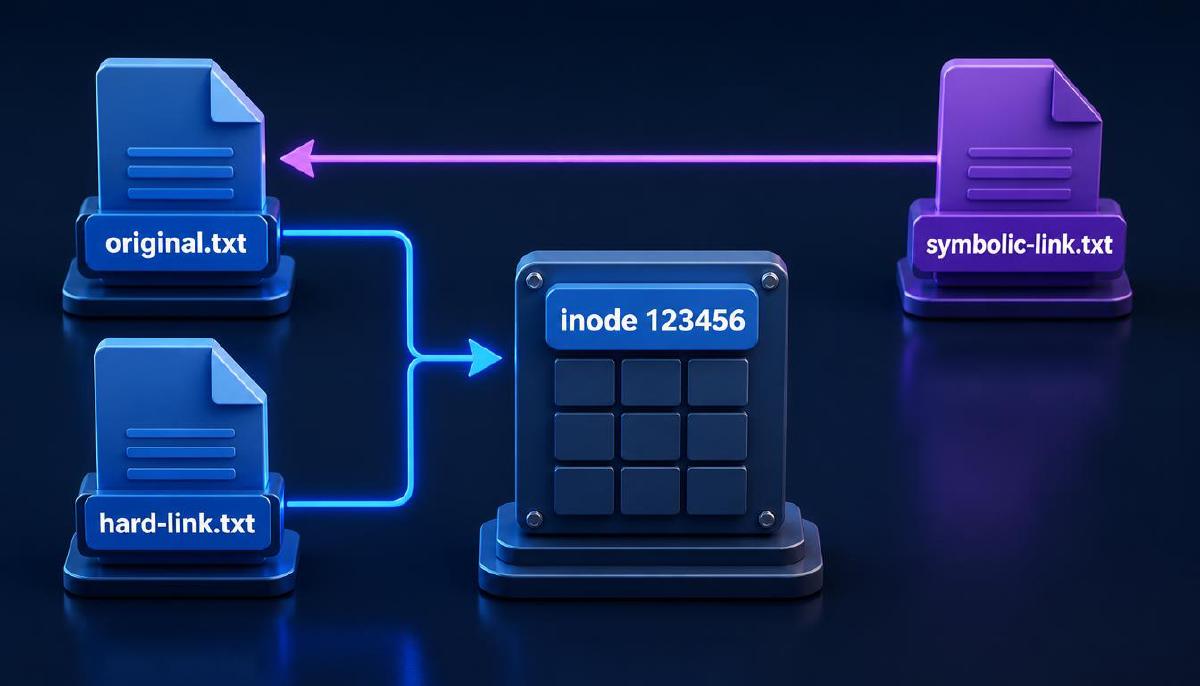
Seeing the Difference in Practice
Let’s create all three objects:
echo "Hello Linux" > original.txt
ln original.txt hard-link.txt
ln -s original.txt symbolic-link.txt
Now inspect them:
ls -li original.txt hard-link.txt symbolic-link.txtYou should notice that:
original.txtandhard-link.txthave the same inode number.symbolic-link.txthas a different inode.- The symbolic link points to
original.txt.
You can also inspect the symbolic link directly:
readlink symbolic-link.txtOutput:
original.txtThis makes the difference visible:
original.txt
     │
     ├── hard-link.txt
     │       │
     └───────┴── same inode

symbolic-link.txt
     │
     └────> "original.txt"
What Happens When the Original Name is Removed?
This is one of the most useful experiments.
First create the links:
echo "Important data" > original.txt
ln original.txt hard-link.txt
ln -s original.txt symbolic-link.txt
Now remove the original filename:
rm original.txtThe hard link still works:
cat hard-link.txtOutput:
Important dataBut the symbolic link is now broken:
cat symbolic-link.txtbecause it still points to the pathname:
original.txtand that pathname no longer exists.
This experiment demonstrates the fundamental difference between the two types of links.
Why This Matters in Linux Administration
Inodes and links are not just filesystem trivia. They help explain real Linux behavior.
For example, understanding hard links makes it easier to understand:
- Why two filenames can refer to the same data
- Why deleting a filename does not necessarily delete the underlying file immediately
- Why hard links cannot normally cross filesystem boundaries
- Why inode exhaustion can occur even when disk space remains
Symbolic links are equally important in system administration.
They are commonly used to:
- Provide alternative paths to files
- Organize directory structures
- Switch between different versions of software
- Maintain compatibility with expected paths
- Point configuration or application paths to another location
Once you understand that a symbolic link stores a pathname while a hard link refers to the same inode, many of these use cases become much easier to understand.
Checking Inode Usage
Disk space is not the only filesystem resource that can run out.
A filesystem also has a finite number of inodes.
You can inspect inode usage with:
df -iExample:
Filesystem   Inodes   IUsed   IFree IUse% Mounted on
/dev/sda2    6500000 125000 6375000    2% /
The exact numbers depend on the filesystem and how it was created.
This is particularly relevant on systems containing very large numbers of small files. A filesystem can potentially have available disk space while running low on available inodes.
That distinction becomes important when diagnosing storage problems.
From Filesystem to Filename
At this point, we can connect several layers of the Linux filesystem model:
Filesystem
    │
    ├── directories
    │      │
    │      └── names → inode numbers
    │
    ├── inodes
    │      │
    │      ├── metadata
    │      └── references to file data
    │
    └── file data
Hard links operate at the directory-entry/inode relationship:
name A ──┐
         ├──> inode ──> data
name B ──┘
Symbolic links introduce another level:
name A ─────> inode ──> data

name B ─────> pathname ─────> name A
This model provides a much better mental picture of what Linux is doing underneath familiar commands such as ls, cp, mv, and rm.
Summary
An inode is the filesystem structure that stores metadata about a file and identifies it within a filesystem.
A directory entry associates a filename with an inode number. This distinction allows multiple names to refer to the same underlying file.
A hard link is another directory entry pointing to the same inode. Both names refer to the same data, and removing one name does not remove the file as long as another hard link remains.
A symbolic link is a separate filesystem object that stores a pathname to another file or directory. It can cross filesystem boundaries and can become dangling when its target path no longer exists.
The essential distinction to remember is:
Hard link:
filename ─────> inode

Symbolic link:
filename ─────> pathname ─────> target
Understanding this relationship between filenames, inodes, hard links, and symbolic links provides an important foundation for the next topics in Linux administration, especially permissions, ownership, and filesystem behavior.