
Introduction
Learning Linux is not just about learning commands. It is easy to learn how to run ls, mount, chmod, ps, or systemctl individually. The more important step is understanding how these commands relate to the system underneath them.
During the previous posts in this series, we looked at different parts of Linux:
- How the Linux filesystem is organised
- How filesystems are mounted
- How
/etc/fstabdefines persistent mounts - How inodes and links work
- How permissions and ownership control access
- How a Linux system boots from firmware to the kernel and
systemd - How processes run and consume system resources
At first, these topics may appear independent. But they are not, They are different views of the same operating system.
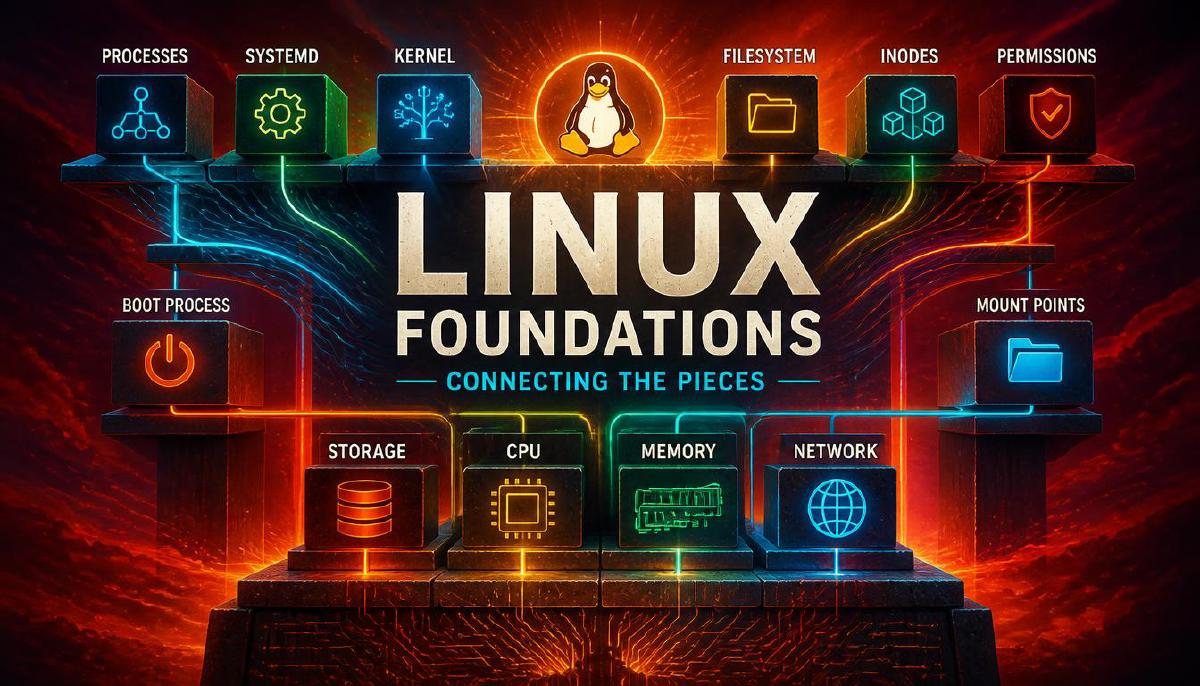
This post brings those concepts together into a single mental model.
Linux as a System of Layers
A useful way to understand Linux is to think about it as a set of interacting layers.
Applications
     ↓
Processes
     ↓
System calls
     ↓
Linux Kernel
     ↓
CPU / Memory / Devices
     ↓
Storage
The filesystem, process management, memory management, networking, and device management are all provided through the kernel and its interfaces.
User-space applications do not normally interact directly with hardware.
Instead, they request services from the kernel.
This distinction is fundamental:
Applications describe what they need; the kernel manages how those requests are fulfilled.
From Boot to a Running System
The first connection begins with the boot process.
When a machine is powered on, Linux is not immediately running.
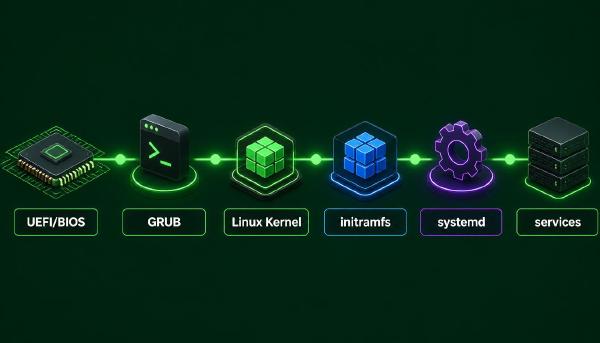
The system moves through several stages:
Firmware
   ↓
UEFI / BIOS
   ↓
Bootloader
   ↓
Linux Kernel
   ↓
initramfs
   ↓
PID 1 / systemd
   ↓
System Services
   ↓
User Applications
Firmware initializes the hardware and starts the boot process.
The bootloader loads the Linux kernel and usually provides information about how the kernel should start.
The kernel then initializes the core operating system environment.
The initramfs provides the temporary userspace environment needed during early boot, particularly when the system needs to discover hardware or access the real root filesystem.
Eventually, the kernel starts the first userspace process.
On a modern systemd-based distribution, this is normally:
PID 1 → systemdAt this point, the system moves from booting to running.
The Root Filesystem
Once the kernel and early userspace have done their work, Linux needs a root filesystem.
This is represented by:
/The root filesystem is the starting point of the Linux directory hierarchy.
Directories such as:
/etc
/var
/home
/tmp
/usr
/dev
/proc
exist beneath this hierarchy.
However, these directories do not necessarily all correspond to separate physical storage devices.
This is where the concept of mounting becomes important.
Mounting Connects Storage to the Filesystem
A filesystem becomes accessible through the Linux directory hierarchy when it is mounted.
For example:
mount /dev/sdb1 /mnt/dataThis connects the filesystem stored on /dev/sdb1 to the directory:
/mnt/dataAfter mounting, applications do not need to know the physical location of the storage.
They simply access:
/mnt/data/file.txtThe Linux filesystem hierarchy provides a consistent interface over the underlying storage.
This is one of the reasons Linux can work with many different storage technologies while presenting applications with a unified filesystem interface.
Makes Mounting Persistent /etc/fstab
A manual mount normally disappears after reboot.
To make a filesystem mount automatically, Linux systems commonly use:
/etc/fstabThis file describes filesystems that should be mounted and how they should be mounted. A simplified entry might look like:
UUID=xxxx-xxxx /data ext4 defaults 0 2This creates an important connection between storage and boot:
Boot
 ↓
systemd
 ↓
fstab
 ↓
Mount filesystems
 ↓
Services start
 ↓
Applications use storage
Therefore, /etc/fstab is not simply a configuration file for the mount command.
It is part of the process that establishes the filesystem environment during system startup.
Files are More Than Names
We tend to think of the path as representing the file itself. But linux separates several concepts here.
When we see:
/home/user/report.txtA directory entry associates a filename with an inode.
The inode contains metadata about the file and references the data blocks that store its contents.
Conceptually:
Filename
   ↓
Directory entry
   ↓
Inode
   ↓
File data
This explains why hard links are possible.
Two different filenames can refer to the same inode:
file.txt ─────┐
              ↓
            inode
              ↓
           file data
              ↑
              │
backup.txt ───┘
The filenames are different, but they refer to the same underlying file object.
Symbolic Links are Different
A symbolic link does not point directly to the same inode.
Instead, it stores a path to another file.
shortcut
   ↓
target path
   ↓
target file
   ↓
inode
This distinction becomes important when troubleshooting broken links, moving files, or working with application configurations.
It also demonstrates an important Linux principle:
What users see as a filename or path is not necessarily the same thing as the underlying filesystem object.
Permissions Add Another Layer
Once we understand that files are filesystem objects, another question appears:
Who is allowed to access them?
Linux associates ownership and permission information with filesystem objects.
A typical file might show:
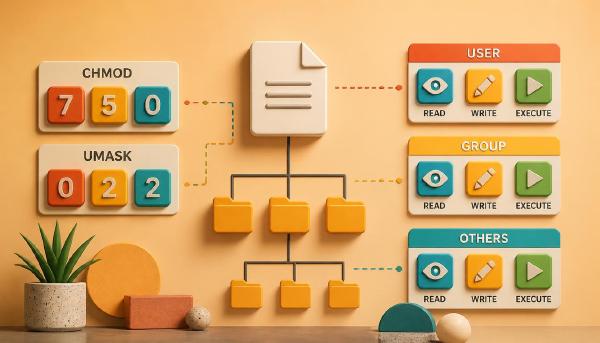
-rw-r--r-- user developers report.txtThe permission bits describe what the owner, group, and others can do.
The familiar permissions are:
r → read
w → write
x → execute
For example:
-rwxr-x---can be interpreted as:
owner   → rwx
group   → r-x
others  → ---
This gives us another layer:
Path
 ↓
Directory entry
 ↓
Inode
 ↓
Ownership + permissions
 ↓
Access decision
Permissions are therefore not an independent feature floating above the filesystem. They are part of the metadata associated with filesystem objects.
Why Directories Have Different Permission Semantics?
A common source of confusion is treating directory permissions exactly like file permissions.
For a regular file:
r → read contents
w → modify contents
x → execute
For a directory:
r → list entries
w → create/delete entries
x → access/traverse entries
This distinction becomes particularly important when troubleshooting access problems.
A user may have permission to read a file but still be unable to reach it because they lack the required execute permission on one of the directories in its path.
For example:
/home/user/project/file.txtrequires traversing the directory hierarchy before the file itself can be accessed.
Processes Bring the System to Life
Filesystem objects and permissions describe resources. Processes are the entities that actually use those resources.
When you run:
cat /etc/hostsa process is created to execute cat.
That process interacts with the filesystem through the kernel.
Conceptually:
User
 ↓
Command
 ↓
Process
 ↓
System call
 ↓
Kernel
 ↓
Filesystem
 ↓
Storage
The process does not normally access the disk directly. The kernel mediates the operation.
File Descriptors Connect Processes to Resources
Processes interact with files and other I/O resources through file descriptors.
The standard descriptors are:
0 → stdin
1 → stdout
2 → stderr
For example:
cat file.txtreads input from a file and writes output to standard output.
Redirection changes these connections:
cat file.txt > output.txtConceptually:
cat process
     │
     ├── stdin
     │
     └── stdout ─────→ output.txt
This is another example of how Linux combines simple primitives to create powerful behaviour.
Where the Kernel Exposes Runtime Information /proc
The filesystem itself is not the only information exposed through filesystem-like interfaces. Linux provides virtual filesystems such as:
/procThe /proc filesystem exposes runtime information maintained by the kernel.
For example:
ls /procwill show directories corresponding to process IDs:
/proc/1
/proc/1234
/proc/5678
A process can therefore be examined through:
/proc/<PID>For example:
cat /proc/1/statusThis creates an interesting connection:
Process
   ↓
PID
   ↓
/proc/<PID>
   ↓
Kernel-provided runtime information
The same filesystem concept we use for persistent storage is also used as an interface to information maintained dynamically by the kernel.
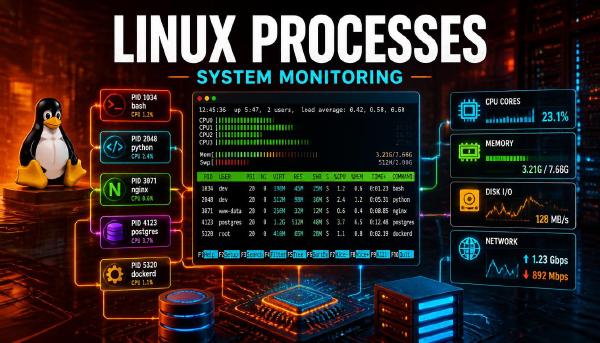
Processes and System Resources
Processes consume system resources.
They need:
- CPU time
- Memory
- File descriptors
- Storage I/O
- Network access
- Other kernel-managed resources
This is why process monitoring is an important part of Linux administration.
For example:
ps auxprovides a snapshot of processes.
topprovides continuously updated information.
free -hhelps inspect memory.
uptimeprovides system uptime and load information.
These commands are not isolated utilities. They are different ways of observing the same running system.
Services Connect Processes to System Configuration
A service is typically a long-running function provided by the system.
On a systemd-based Linux distribution, services are commonly managed through:
systemctlFor example:
systemctl status sshallows us to inspect the state of the SSH service.
The relationship can be viewed as:
systemd
   ↓
service
   ↓
process
   ↓
resources
This connects the earlier boot discussion with process management.
During boot, systemd starts services.
Those services create or manage processes.
Those processes consume system resources and interact with files, devices, networks, and other kernel facilities.
A Single Request Can Cross Many Layers
Consider a simple operation:
cat /var/log/syslogIt looks like one command.
But conceptually, several things happen:
Shell
 ↓
Create/execute process
 ↓
cat requests file access
 ↓
Kernel receives system call
 ↓
Permission checks
 ↓
Filesystem lookup
 ↓
Directory entry
 ↓
Inode
 ↓
Filesystem
 ↓
Storage
 ↓
Data returned to process
 ↓
stdout
 ↓
Terminal
This is the kind of connection that turns individual Linux commands into a coherent mental model.
Troubleshooting Becomes Layered
This mental model also changes how we troubleshoot.
Suppose an application cannot read a file. Instead of immediately changing permissions, we can work through the layers:
Is the process running?
        ↓
What user is the process running as?
        ↓
Does the path exist?
        ↓
Is the filesystem mounted?
        ↓
Can the process traverse the directories?
        ↓
What are the file ownership and permissions?
        ↓
Is the filesystem healthy?
        ↓
Is the underlying storage available?
A similar approach works when a server is slow:
Is the service running?
        ↓
Which process is responsible?
        ↓
Is CPU saturated?
        ↓
Is memory under pressure?
        ↓
Is the system waiting for I/O?
        ↓
Is the network involved?
        ↓
What does the application log show?
The commands come after choosing the appropriate path.
From Linux Foundations to DevOps
These concepts are not only useful for traditional Linux administration.
They become the foundation for many DevOps technologies.
Containers
Containers isolate processes while still relying on the host Linux kernel.
Understanding processes, filesystems, namespaces, and resources makes container behaviour much easier to understand.
Kubernetes
Kubernetes ultimately schedules and manages workloads that become running processes on machines.
Concepts such as resource requests, limits, health checks, and container lifecycle management build upon lower-level operating system concepts.
Infrastructure as Code
Tools such as Terraform and Ansible automate changes to systems.
But the systems they configure still contain:
files
permissions
services
processes
network interfaces
storage
Automation does not replace the underlying concepts. It operates on top of them.
Building a Linux Mental Model
The most useful outcome of learning Linux fundamentals is not knowing hundreds of commands. It is being able to move between different levels of abstraction.
For example:
Application
    ↓
Service
    ↓
Process
    ↓
System call
    ↓
Kernel
    ↓
Filesystem / Network / Memory / Device
    ↓
Hardware
And for storage:
Disk
 ↓
Partition
 ↓
Filesystem
 ↓
Mount
 ↓
Directory
 ↓
Filename
 ↓
Inode
 ↓
Data
And for access:
Process
 ↓
User / Group
 ↓
Permission check
 ↓
Filesystem object
These are not separate Linux topics. They are connected views of the same system.
Summary
The Linux learning path can now be viewed as a chain:
Filesystem
     ↓
Mounts
     ↓
Inodes & Links
     ↓
Permissions & Ownership
     ↓
Boot Process
     ↓
systemd & Services
     ↓
Processes
     ↓
System Resources
Each topic explains another part of the same machine.
The filesystem explains how data and resources are organised.
Mounting explains how filesystems become part of the directory hierarchy.
Inodes explain how filesystem objects are represented.
Permissions explain who can access those objects.
The boot process explains how the operating system comes to life.
The systemd explains how userspace services are started and managed.
Processes explain what is actually running.
Monitoring explains how we observe the system and identify problems.
Together, they form the foundation needed to work effectively with Linux infrastructure.
Here are some Key Takeaways:
- Linux is best understood as a set of interconnected layers rather than a collection of commands.
- The boot process eventually leads to a running userspace managed by PID 1.
- Filesystems provide the structure through which Linux exposes storage and resources.
- Mounts connect filesystems to the Linux directory hierarchy.
- Directory entries, filenames, and inodes represent different aspects of filesystem organisation.
- Permissions and ownership determine how processes can access filesystem objects.
- Processes interact with the kernel through system calls and consume system resources.
- The
/procprovides a filesystem-like interface to runtime kernel information. - The
systemdconnects system configuration and services with running processes. - Monitoring tools provide different views of the same underlying system.
- Understanding the relationships between these concepts is more valuable than memorising individual commands.
- These foundations provide the basis for understanding containers, orchestration, automation, and broader DevOps technologies.
With these Linux foundations in place, the next stage of the journey can move from understanding how Linux works toward understanding how to operate and automate systems effectively.
The concepts introduced here will continue to appear as we move into more advanced Linux administration and eventually into the wider DevOps toolchain.