
Introduction
One of the first things to understand when working seriously with Linux is how its filesystem is organized.
At first, the Linux filesystem can look like a collection of directories with familiar names such as /etc, /var, /home, and /tmp. But these directories are not arbitrary. Each one has a specific role, and understanding that role becomes increasingly important as we move from basic Linux administration toward DevOps.
Rather than memorizing directory names, it is more useful to understand what kind of data belongs in each location and why it is there.
This is also one of the areas where Linux differs from the way files are commonly organized in desktop operating systems.
Everything Starts at /
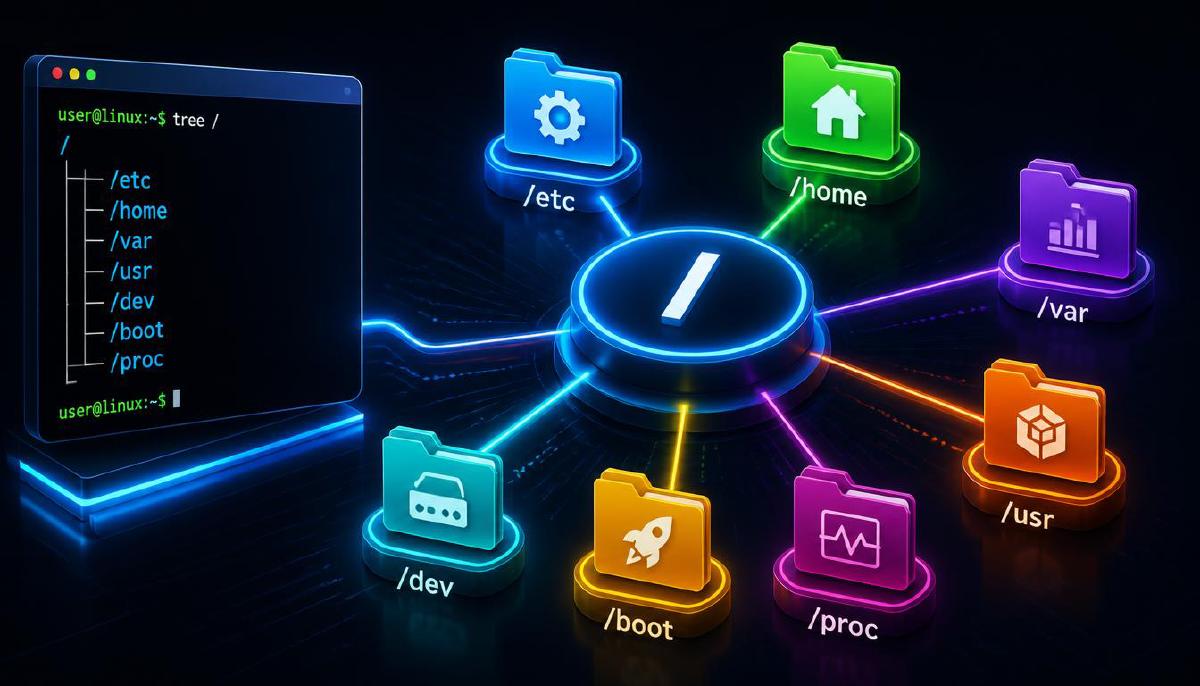
Following the Unix filesystem model described by the Filesystem Hierarchy Standard (FHS), Linux uses a single filesystem hierarchy that begins at the root directory:
/The root directory is not the same thing as the root user.
The root user is a privileged user account, while / is the top of the filesystem hierarchy.
You can see the current location with:
pwdAnd inspect the top-level directories with:
ls -lah /On a typical Ubuntu installation, you will see directories similar to:
/
├── bin
├── boot
├── dev
├── etc
├── home
├── lib
├── media
├── mnt
├── opt
├── proc
├── root
├── run
├── sbin
├── srv
├── sys
├── tmp
├── usr
└── var
Not every Linux distribution will have exactly the same layout or contents, and some directories may be handled differently depending on the distribution and its configuration. However, the overall filesystem hierarchy follows well-established conventions.
The important part is not memorizing this tree. It is understanding the purpose behind its major branches.
System Configuration — /etc
The /etc directory is primarily used for system-wide configuration files.
You can inspect some of its contents with:
ls -lah /etcFor example:
/etc/fstab
/etc/hosts
/etc/hostname
One file that became particularly interesting while working with Linux storage is:
/etc/fstabYou can inspect it with:
cat /etc/fstabOr, when you want to read it page by page:
less /etc/fstabIt contains information that Linux can use to determine which filesystems should be mounted and where they should be mounted.
This makes /etc a good example of why understanding the filesystem hierarchy matters. When looking for configuration that controls how the system behaves, /etc is one of the first places to investigate.
It is generally configuration, not the place where the actual changing application or user data should live.
User Data — /home
The /home directory is where regular users typically have their personal directories.
You can see which user directories exist with:
ls -lah /homeFor example:
/home/xsah/A xsah’s documents, configuration files, scripts, and other personal data can live inside this directory.
You can inspect the current user’s home directory with:
echo "$HOME"And list its contents with:
ls -lah "$HOME"The important distinction is that /home is associated with users and their personal data, whereas /etc is primarily associated with system-wide configuration.
This distinction becomes useful when administering a server and trying to understand which files belong to the operating system and which belong to users.
The Root User’s Home — /root
There is an easy point of confusion here:
/and
/rootare completely different things.
/ is the root of the entire filesystem hierarchy.
/root is the home directory of the root user.
So a simplified view is:
/
├── home
│   └── user
│
└── root
You can inspect the directory itself with:
ls -ld /rootAccess to its contents normally requires appropriate privileges. The name is similar, but their purposes are different.
Data That Changes — /var
The name /var comes from “variable”.
It is intended for data that is expected to change during normal system operation.
Examples include:
- logs
- caches
- spool data
- application state
- databases and other variable application data, depending on the software
For example, system and application logs are commonly found under:
/var/log/You can inspect the directory with:
ls -lah /var/logTo get an idea of how much space its subdirectories are using:
sudo du -sh /var/log/*The -h option makes sizes easier to read, while -s summarizes each directory.
You can also inspect a particular log file without modifying it:
less /var/log/syslogThis is an important directory when troubleshooting a Linux system.
If something is going wrong with a service, checking its logs under /var/log can often provide useful information about what happened.
This is one reason /var is more than just another directory: it is closely connected to the runtime state and operational data of the system.
Temporary Data — /tmp
As its name suggests, /tmp is intended for temporary files.
Programs can use it when they need a temporary location for data that does not need to be kept permanently.
You can inspect it with:
ls -lah /tmpA safe way to experiment with the directory is to create a temporary file:
touch /tmp/xsah-testThen verify that it exists:
ls -l /tmp/xsah-testAnd remove the test file when finished:
rm /tmp/xsah-testBecause temporary data has a different lifecycle from permanent system configuration or user data, having a dedicated location makes the filesystem easier to manage.
It is also important not to assume that files placed in /tmp should necessarily remain there indefinitely.
Devices as Files — /dev
One of the concepts that initially makes the Linux filesystem feel different is /dev.
Linux represents many devices through special files under:
/dev/You can inspect some of these entries with:
ls -lah /devFor storage devices, you may see entries such as:
/dev/sda
/dev/sdb
or partitions such as:
/dev/sda1
/dev/sda2
A more useful way to examine block devices is:
lsblkFor example, the output might look conceptually like:
NAME   MAJ:MIN RM   SIZE RO TYPE MOUNTPOINTS
sda      8:0    0    50G  0 disk
├─sda1   8:1    0    49G  0 part /
└─sda2   8:2    0     1G  0 part [SWAP]
The exact output depends on the machine, but lsblk makes the relationship between disks, partitions, and mount points easier to see.
This is connected to the broader Unix/Linux idea of “Everything is a file”, although device files are special filesystem objects rather than ordinary files containing user data.
This becomes especially important when working with storage.
A useful mental model is:
Physical / Virtual Device
        ↓
      /dev
        ↓
   Filesystem
        ↓
   Mount Point
Understanding this relationship makes commands such as lsblk, mount, and df much easier to reason about later.
For example, you can see currently mounted filesystems with:
df -hHere, lsblk helps you understand the devices, while df helps you understand the filesystems that are currently mounted and their space usage.
Files Needed for Booting — /boot
The /boot directory contains files used during the system’s boot process.
You can inspect it with:
ls -lah /bootDepending on the system, this can include:
- Linux kernel images
- initramfs images
- bootloader-related files
For example:
/boot/is an important location when investigating how the system starts.
You can identify installed kernel images with:
ls -lh /boot/vmlinuz*The boot process itself involves several stages, from firmware such as BIOS or UEFI to the bootloader, kernel, and eventually the userspace system.
We will look at that process separately rather than mixing it into the filesystem discussion.
Userland Programs and Resources — /usr
The /usr is one of the largest and sometimes most confusing parts of the Linux filesystem.
It commonly contains installed programs, libraries, documentation, and other resources used by the operating system and applications.
For example:
/usr/bin
/usr/lib
/usr/share
You can inspect some of these directories with:
ls -lah /usrAnd see where a command is located with:
which curlOn many modern Linux systems, the result will point somewhere under /usr/bin.
You can also use:
command -v curlwhich is often preferable in shell scripts because it checks how the shell resolves the command.
A common misunderstanding is that /usr means “the user’s personal files”.
It does not.
Personal user data normally belongs under /home.
The historical meaning and organization of /usr are more complicated than its name might suggest, but for practical Linux administration, the important point is that it is primarily part of the system’s installed software and supporting resources.
Interfaces to the Running System — /proc and /sys
Some directories in the Linux filesystem are not ordinary directories containing files stored on disk.
Two important examples are:
/proc
/sys
They provide interfaces through which information about the running kernel and system can be exposed to userspace.
For example, /proc provides information about processes and various aspects of the running system.
You can inspect the top-level entries with:
ls /proc | headYou can also read information about the processor:
cat /proc/cpuinfoOr memory information:
cat /proc/meminfoThe /proc directory also contains directories associated with running processes.
For example:
ls /proc/$$Here, $$ is expanded by the shell to the PID of the current shell.
Similarly, /sys exposes information about devices, drivers, and other parts of the kernel’s device model.
You can inspect it with:
ls /sysThis is another important reminder that the Linux filesystem hierarchy is not simply a collection of folders on a disk.
Some parts of it represent interfaces to the kernel and the running system itself.
Runtime Data — /run
The /run is used for runtime data created after the system boots.
You can inspect it with:
ls -lah /runIt can contain information such as:
- process-related runtime data
- PID files
- sockets
- other transient system state
You can also inspect the space used by its contents with:
sudo du -sh /run/*Unlike permanent configuration under /etc, the contents of /run are generally associated with the current boot and runtime state.
This distinction becomes particularly useful when working with services and systemd.
Mounting — /media and /mnt
Both /media and /mnt are associated with mounting filesystems, but they are used in somewhat different contexts.
You can check whether anything is currently mounted there with:
 ls -lah /media
 ls -lah /mnt
The /media is commonly used for automatically mounted removable media, such as USB storage.
The /mnt is traditionally used as a temporary mount point when an administrator manually mounts a filesystem.
For example:
/mnt/datacould be used as a mount point for a manually mounted filesystem.
The important concept here is not the directory name itself, but the idea of a mount point: a directory through which the contents of another filesystem become accessible.
You can see the current mount relationships with:
findmntor, for a more familiar view:
df -hWe will explore mounting and /etc/fstab in the next post.
A Better Mental Model
After looking at these directories, it is tempting to memorize a table:
/etc  → configuration
/home → user data
/var  → variable data
/tmp  → temporary data
/dev  → devices
/boot → boot files
/usr  → installed software and resources
That is useful, but there is a better way to think about the filesystem.
Instead of asking:
“What is this directory called?”
ask:
“What kind of data belongs here, and what is its lifecycle?”
For example:
System configuration
        ↓
       /etc

User data
        ↓
      /home

Changing operational data
        ↓
       /var

Temporary data
        ↓
       /tmp

Devices
        ↓
       /dev

Runtime system state
        ↓
       /run
This mental model becomes much more useful as the environment becomes more complex.
A Small Practical Exploration
Instead of simply reading about the filesystem, it is useful to explore it directly.
Start by checking the root directory:
ls -lah /Then examine some of the most important locations:
ls -lah /etc | head
ls -lah /home
ls -lah /var/log | head
ls -lah /tmp | head
ls -lah /boot | head
Next, look at the relationship between storage devices and mounted filesystems:
lsblkdf -hAnd finally, look at the parts of the filesystem that expose information from the running system:
cat /proc/meminfols /sysThese commands do not require memorizing a long list of options. Their purpose is simply to make the filesystem hierarchy something you can observe on a real Linux system.
Why This Matters for DevOps
At first, learning the Linux filesystem can feel disconnected from DevOps.
But it is not! As we move forward, the same concepts appear repeatedly.
When configuring a service, we encounter /etc.
When investigating logs, we often look under /var/log.
When working with storage, we encounter /dev, filesystems, mount points, and /etc/fstab.
When troubleshooting running processes, /proc becomes relevant.
When working with services and systemd, /run and runtime state become important.
And when we eventually move into containers, Kubernetes, and cloud infrastructure, understanding filesystems, mounts, storage, and runtime state becomes even more important.
For example, containerized applications still have filesystems, mount points, and persistent data. Kubernetes introduces concepts such as volumes and persistent volumes, which become much easier to understand when the underlying Linux concepts are already familiar.
So the goal is not simply to memorize the Linux directory structure.The goal is to build a mental model of how Linux organizes the system.
Summary
The Linux filesystem is organized as a single hierarchy beginning at /.
Its major directories have different responsibilities:
/       → root of the filesystem hierarchy
/etc    → system-wide configuration
/home   → users' personal data
/root   → root user's home directory
/var    → changing operational data
/tmp    → temporary data
/dev    → device interfaces
/boot   → boot-related files
/usr    → installed software and resources
/proc   → kernel and process information
/sys    → kernel and device information
/run    → runtime system state
/mnt    → commonly used for temporary/manual mounts
/media  → commonly used for removable media
Understanding these locations provides a foundation for the next topics in the Linux learning path.
The next step is to go one level deeper: how devices, filesystems, and mount points are connected, and how /etc/fstab controls persistent mounts.