
Introduction
When a Linux system starts, several components work together before the first login prompt or graphical desktop appears.
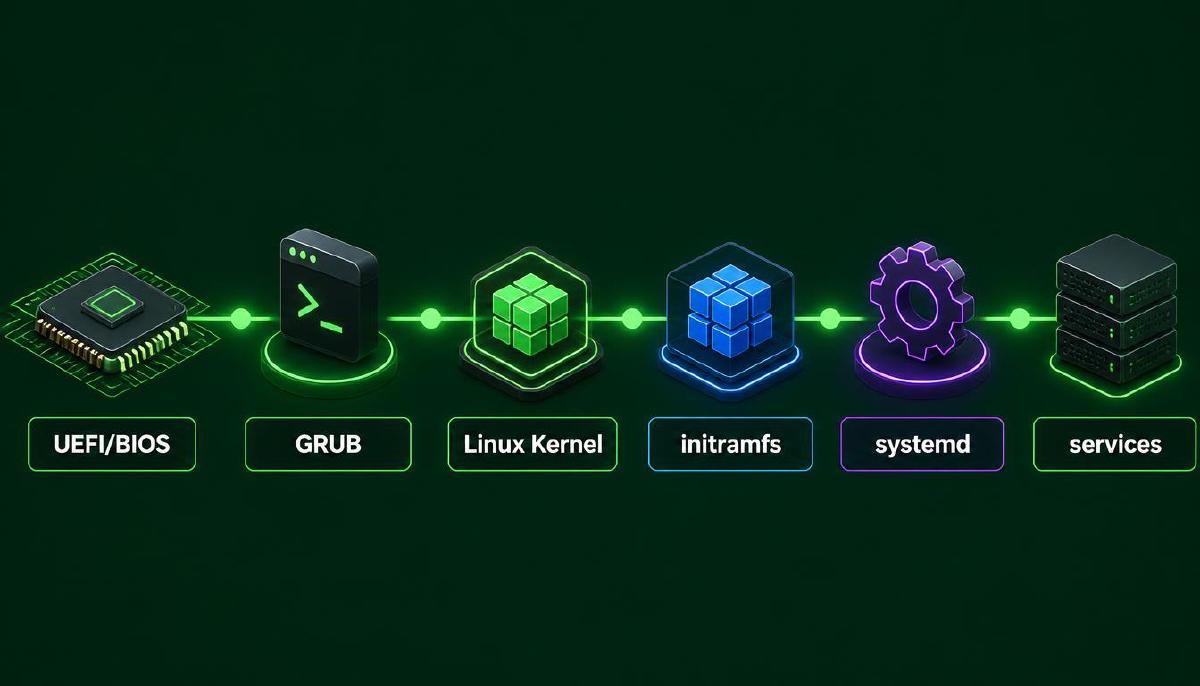
The process begins with system firmware, continues through a bootloader, loads the Linux kernel and its initial userspace environment, and eventually hands control to systemd and the services it manages.
Understanding this sequence makes it easier to troubleshoot boot failures and understand how the different layers of a Linux system fit together.
In this post, we will follow the boot process from UEFI/BIOS to GRUB, the kernel, initramfs, and systemd.
The Linux Boot Process at a Glance
A simplified Linux boot sequence looks like this:
Power On
   │
   ▼
UEFI / BIOS
   │
   ▼
Bootloader
   │
   ▼
GRUB
   │
   ▼
Linux Kernel
   │
   ▼
initramfs
   │
   ▼
systemd
   │
   ▼
System Services
   │
   ▼
Login / Graphical Desktop
The exact details vary between systems, but these stages provide a useful mental model.
Each stage has a specific responsibility, and failure at one stage can prevent the following stages from starting.
Firmware: UEFI and BIOS
The first software that runs after a machine is powered on is its firmware.
Traditionally, PCs used BIOS (Basic Input/Output System). Modern systems generally use UEFI (Unified Extensible Firmware Interface).
The firmware performs early hardware initialization and determines how the system should continue the boot process.
BIOS
BIOS is the older firmware interface used by traditional PC systems.
In a typical BIOS-based system, the firmware looks for a bootable device and loads boot code from the beginning of that device.
This boot code then starts the bootloader.
UEFI
UEFI is the modern replacement for BIOS.
Instead of relying on the traditional boot sector mechanism, UEFI can directly read files from an EFI System Partition (ESP) and execute an EFI bootloader.
The EFI System Partition is usually a small FAT-formatted partition containing bootloader files.
You can inspect partitions on a Linux system with:
lsblk -fOn a UEFI system, you may see a partition mounted at:
/boot/efiYou can also inspect mounted filesystems with:
findmntUEFI provides a more flexible boot environment than traditional BIOS and is closely associated with modern partitioning schemes such as GPT.
UEFI vs GPT
UEFI and GPT are often discussed together, but they are not the same thing.
- UEFI is firmware.
- GPT is a partition table format.
A UEFI system commonly uses GPT, but the two concepts solve different problems.
You can inspect the partition table and devices with:
lsblk
sudo fdisk -l
This distinction is useful because firmware, partitioning, and bootloader are separate layers of the boot process.
The Bootloader
After firmware has initialized the system, control is transferred to a bootloader.
A bootloader is responsible for loading the operating system kernel and providing the information required to start it.
On many Linux systems, the bootloader is GRUB (GRand Unified Bootloader).
GRUB is commonly used on both BIOS-based and UEFI-based Linux systems.
GRUB
GRUB acts as the bridge between firmware and the Linux kernel.
A typical sequence is:
Firmware
   │
   ▼
GRUB
   │
   ▼
Linux Kernel + initramfs
GRUB can present a boot menu, select a kernel, pass kernel parameters, and load the kernel and initramfs into memory.
On a system with multiple operating systems or multiple installed kernels, GRUB can provide choices during startup.
Where GRUB Gets Its Configuration
On many Linux distributions, GRUB’s configuration is generated from configuration files and installed kernels rather than being edited directly as a primary workflow.
For example, you may encounter:
/etc/default/gruband:
/etc/grub.d/The generated configuration is commonly located at:
/boot/grub/grub.cfgThe exact paths and management commands can vary between distributions.
On Debian-based systems, for example, the following command regenerates the GRUB configuration:
sudo update-grubIt is useful to distinguish between the configuration source and the generated configuration. Manually editing generated files can cause changes to be overwritten later.
The Linux Kernel
Once GRUB has selected a kernel, it loads the Linux kernel into memory and passes control to it.
The kernel is the core component of the operating system. It manages hardware resources and provides the fundamental interfaces used by userspace programs.
The kernel is responsible for tasks such as:
- CPU scheduling
- Memory management
- Device management
- Filesystem support
- Networking
- Process management
The kernel image is commonly stored under:
/bootYou can inspect the directory with:
ls -lh /bootOn many distributions, files with names similar to these may be present:
vmlinuz-...
initrd.img-...
The exact filenames depend on the distribution and installed kernel versions.
initramfs
The kernel cannot always access everything it needs immediately after being loaded.
For example, the real root filesystem may require a storage driver, filesystem module, encryption support, RAID support, or another component that is not built directly into the kernel.
This is where initramfs comes in.
initramfs stands for initial RAM filesystem. It provides a temporary userspace environment loaded into memory during early boot.
A simplified sequence is:
GRUB
 │
 ├── Kernel
 │
 └── initramfs
        │
        ▼
   Prepare root filesystem
        │
        ▼
   Start real userspace
The initramfs can load required kernel modules, discover storage devices, unlock encrypted volumes, assemble storage, and perform other early-boot tasks.
Once the real root filesystem is ready, the system can continue into the normal userspace environment.
Finding the Root Filesystem
Eventually, the system needs to mount the real root filesystem:
/This is the filesystem that contains the Linux userspace hierarchy discussed in the earlier filesystem post.
The kernel command line can contain information that helps the system identify the root filesystem.
You can inspect the kernel command line of the currently running system with:
cat /proc/cmdlineYou may see parameters such as:
root=UUID=...This connects the boot process with concepts from the filesystem and mounting layers.
systemd Takes Over
Once the kernel has initialized the required hardware and the root filesystem is available, the system needs to start the first userspace process.
On modern Linux distributions using systemd, this process is usually:
/sbin/initwhich resolves to systemd.
You can verify the init process with:
ps -p 1 -o pid,comm,argsA typical result is:
PID COMMAND         COMMAND
  1 systemd         /sbin/init
Process ID 1 is special because it becomes the ancestor of most userspace processes.
Once systemd starts as PID 1, it becomes responsible for bringing the system into its configured operational state. It starts and manages services, mounts filesystems, creates runtime resources, and coordinates other parts of userspace initialization.
You can inspect the current systemd state with:
systemctl statusYou can also inspect the default boot target:
systemctl get-defaultOn a typical desktop system, this may return:
graphical.targetwhile a server may commonly use:
multi-user.targetThe boot process has now moved from firmware and bootloader responsibilities into normal userspace service management.
Boot Targets
systemd uses targets to group units and represent system states.
Some commonly encountered targets are:
local-fs.targetnetwork.targetmulti-user.targetgraphical.target
For example:
systemctl list-dependencies multi-user.targetcan show units involved in reaching the multi-user state.
This provides a useful way to see that booting is not simply a linear sequence of commands. systemd builds and manages a dependency graph of units.
Inspecting the Boot Process
After the system has booted, you can inspect what happened during startup.
One of the most useful commands is:
systemd-analyzeIt provides a summary of the time spent during boot.
For example:
systemd-analyzemay produce output similar to:
Startup finished in 4.2s (firmware) + 2.1s (loader) + 3.4s (kernel) + 5.7s (userspace) = 15.4sYou can also inspect the services that consumed the most startup time:
systemd-analyze blameAnd inspect the dependency relationship between units:
systemd-analyze critical-chainThese commands are particularly useful when investigating slow boot times.
Viewing Kernel Messages
The kernel records messages generated during hardware initialization and other kernel activities.
You can inspect them with:
dmesgFor example:
dmesg | lessOn systems where access to the kernel message buffer is restricted, sudo may be required.
You can also use the system journal to inspect kernel messages:
journalctl -kThis is useful when investigating hardware detection, storage problems, driver issues, and other boot-related problems.
What Happens When Boot Fails?
The boot process can fail at different stages.
For example:
Firmware
   │
   ├── Failure → Firmware / hardware problem
   │
   ▼
GRUB
   │
   ├── Failure → Bootloader problem
   │
   ▼
Kernel
   │
   ├── Failure → Kernel / driver / hardware problem
   │
   ▼
initramfs
   │
   ├── Failure → Root filesystem / storage problem
   │
   ▼
systemd
   │
   ├── Failure → Userspace / service problem
   │
   ▼
Login
Knowing which stage failed dramatically narrows the troubleshooting process.
For example, if GRUB never appears, investigating systemd services is premature. If the kernel starts but cannot mount the root filesystem, the problem is likely somewhere in the kernel, initramfs, storage, or filesystem layers.
A Practical Boot Investigation
When investigating a running Linux system, start by identifying the major components involved:
ls /boot
findmnt /
cat /proc/cmdline
ps -p 1 -o pid,comm,args
systemctl get-default
systemd-analyze
Then inspect kernel and system logs when necessary:
dmesg | less
journalctl -b
journalctl -k
The -b option is particularly useful because it allows the system journal to be examined in the context of a boot.
For example:
journalctl -b -p errcan help identify error-level messages from the current boot.
Why the Boot Process Matters in DevOps
Understanding boot is useful far beyond troubleshooting a desktop Linux installation. Servers depend on the same fundamental layers to become operational after a restart.
In a DevOps environment, boot-related knowledge becomes useful when dealing with:
- Remote Linux servers
- Kernel updates
- Bootloader configuration
- Storage and encrypted volumes
- System services
- Infrastructure provisioning
- Virtual machines
- Cloud instances
- Recovery environments
- Failed deployments after reboot
For example, if a server becomes unreachable after a kernel update, understanding the sequence from firmware and GRUB through the kernel, initramfs, and systemd provides a structured way to investigate the failure.
Filesystem
    │
    ▼
Storage / Mounting
    │
    ▼
Kernel
    │
    ▼
systemd
    │
    ▼
Services
The boot process is therefore not an isolated topic. It connects the filesystem, storage, kernel, processes, and service-management concepts that form the foundation of Linux administration.
Summary
A Linux system passes through several important stages before it becomes ready for normal use:
UEFI / BIOS
     ↓
GRUB
     ↓
Linux Kernel
     ↓
initramfs
     ↓
systemd
     ↓
System Services
     ↓
Login
The main responsibilities of these layers are:
- UEFI/BIOS initializes the system and begins the boot process.
- GRUB loads the selected kernel and initramfs.
- The Linux kernel initializes hardware and provides the core operating-system functionality.
- initramfs provides the temporary early-userspace environment needed to prepare the real root filesystem.
- systemd starts as PID 1 and manages the transition into the normal userspace environment.
- Services and targets bring the system into its configured operational state.
Understanding this sequence gives us a much clearer picture of what happens between pressing the power button and reaching a usable Linux system.